> ## Documentation Index
> Fetch the complete documentation index at: https://docs.basedapp.com/llms.txt
> Use this file to discover all available pages before exploring further.
# Getting Started
> How to install and set up the Based App
## Installation
Follow these device-specific instructions to install Based on your mobile device. Based is also available as a Mini App within Farcaster and The Base App (TBA).
### Android
1. Using Chrome, navigate to [app.basedapp.com](https://app.basedapp.com)
2. Then click the ellipsis (three dots) in the top right corner 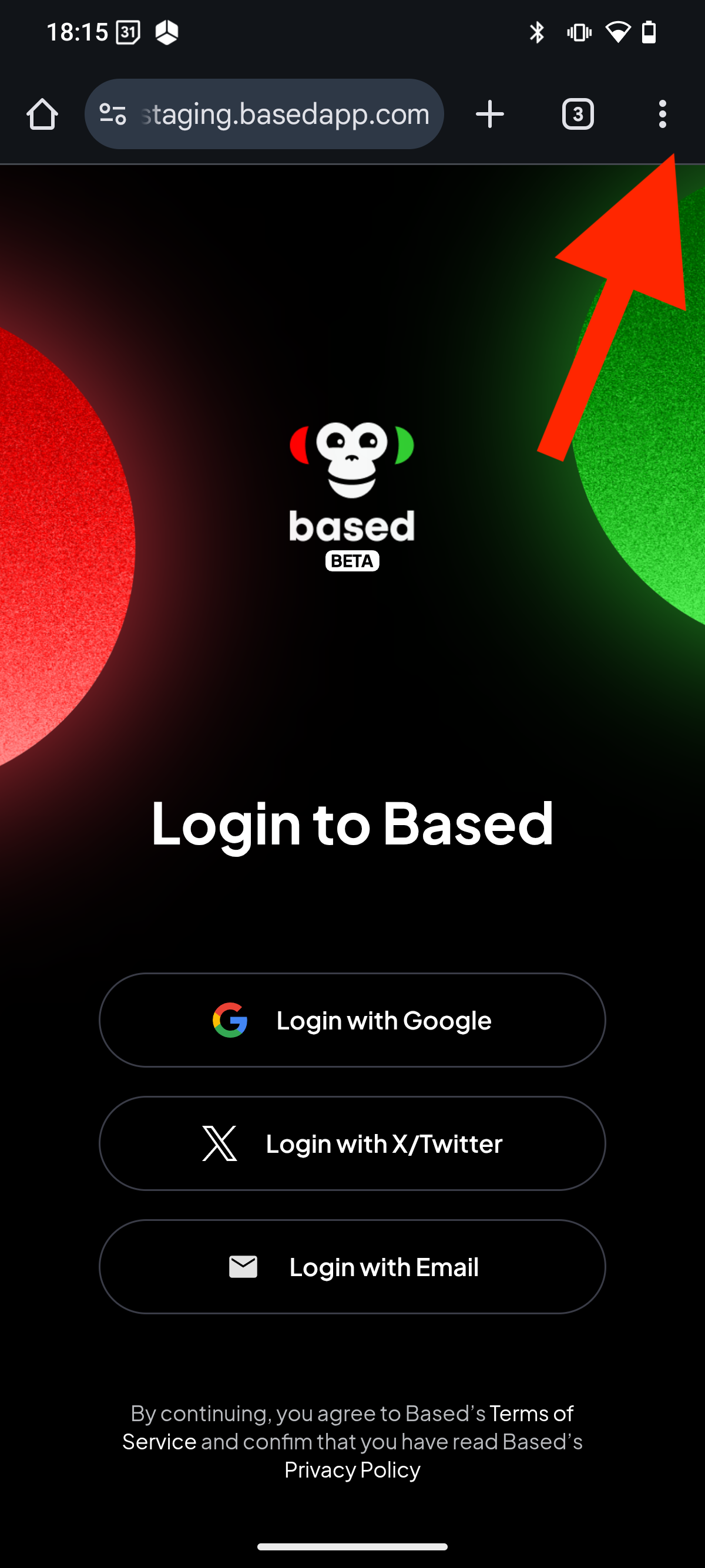 3. Select "Add to home screen"
 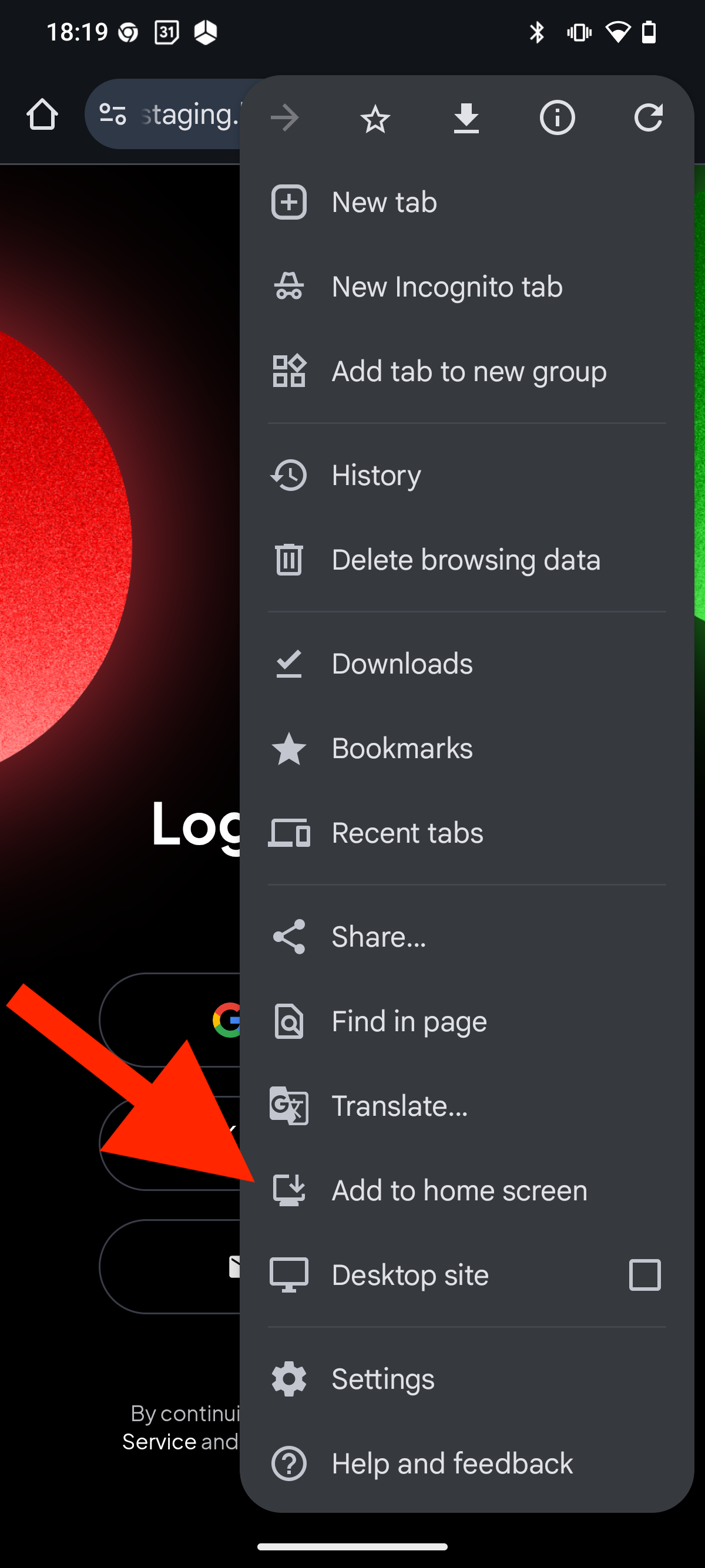 4. Click "Install"
 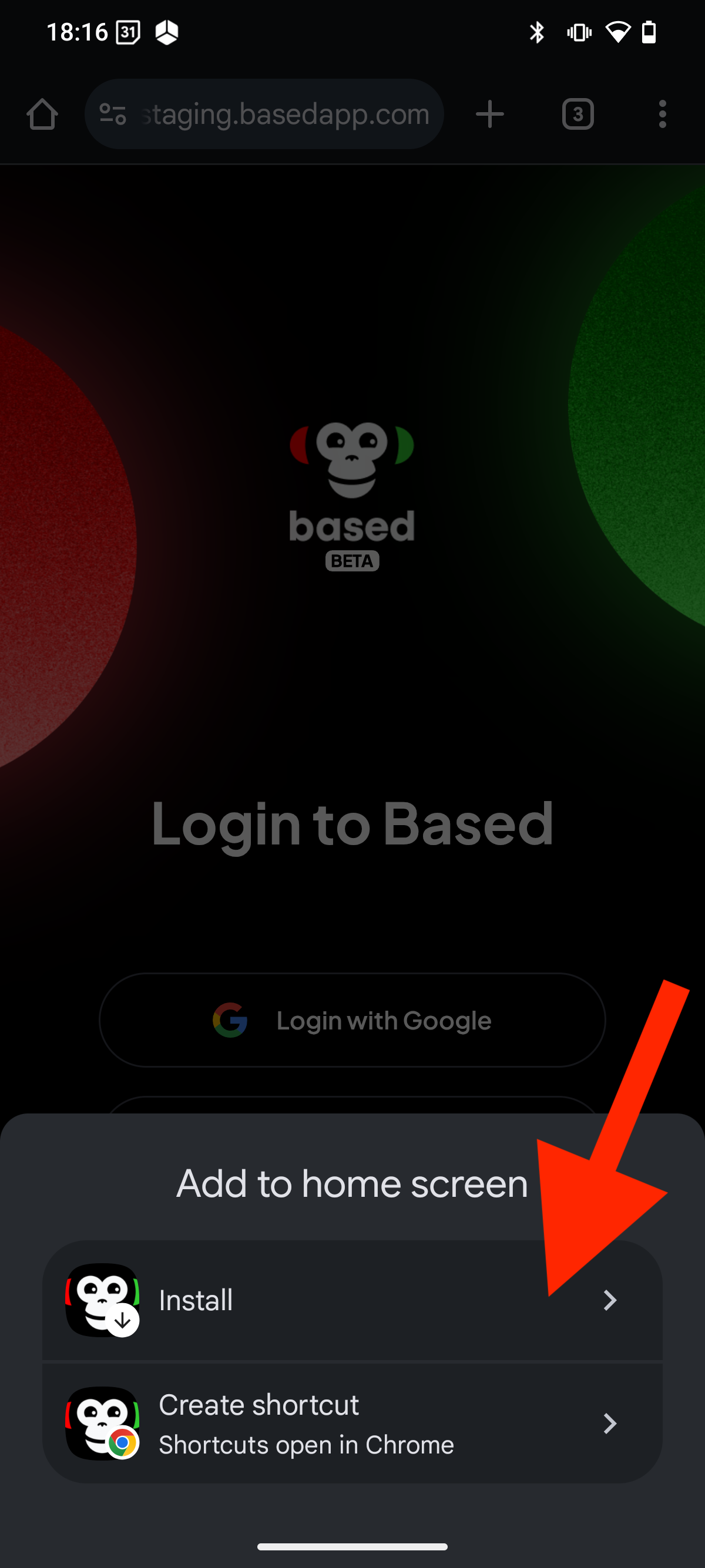 5. Click "Install" again
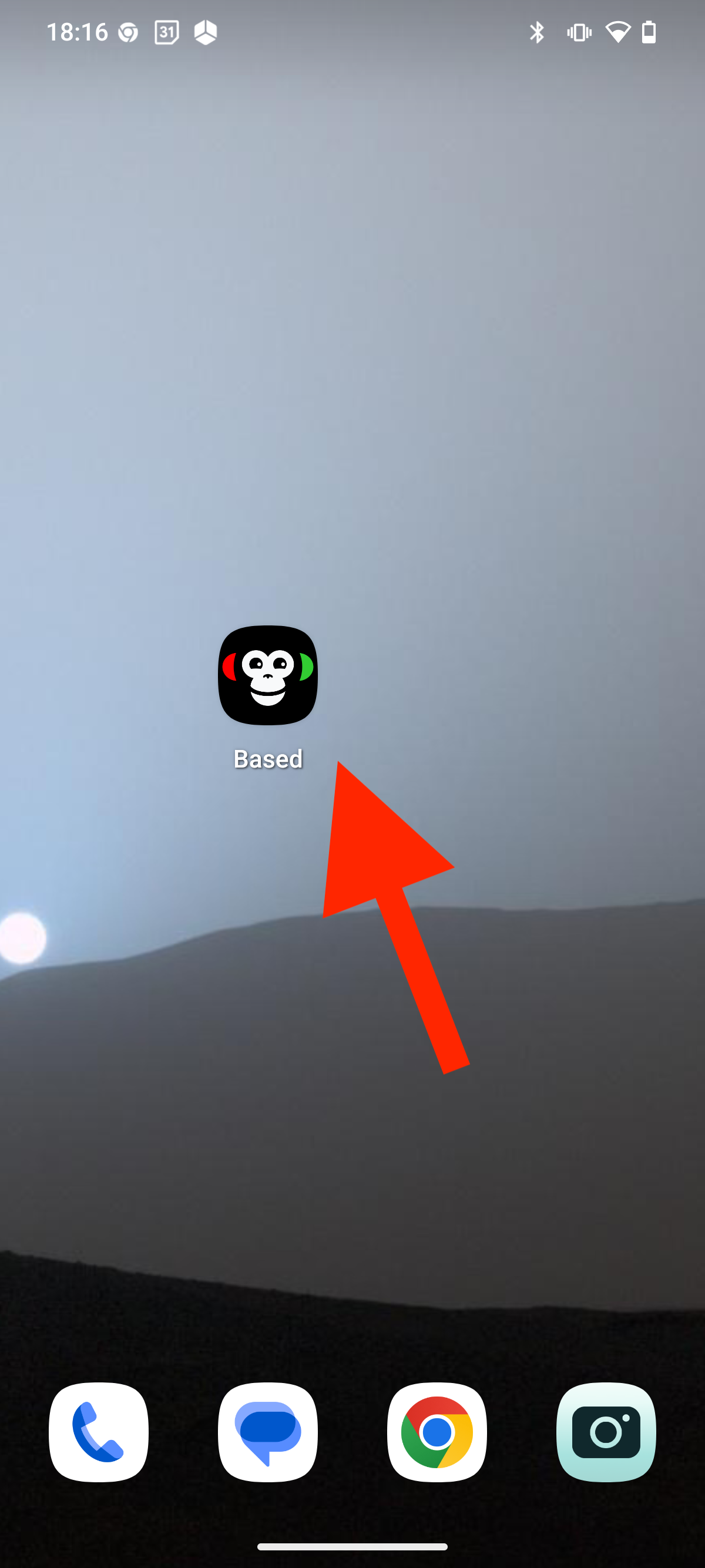
 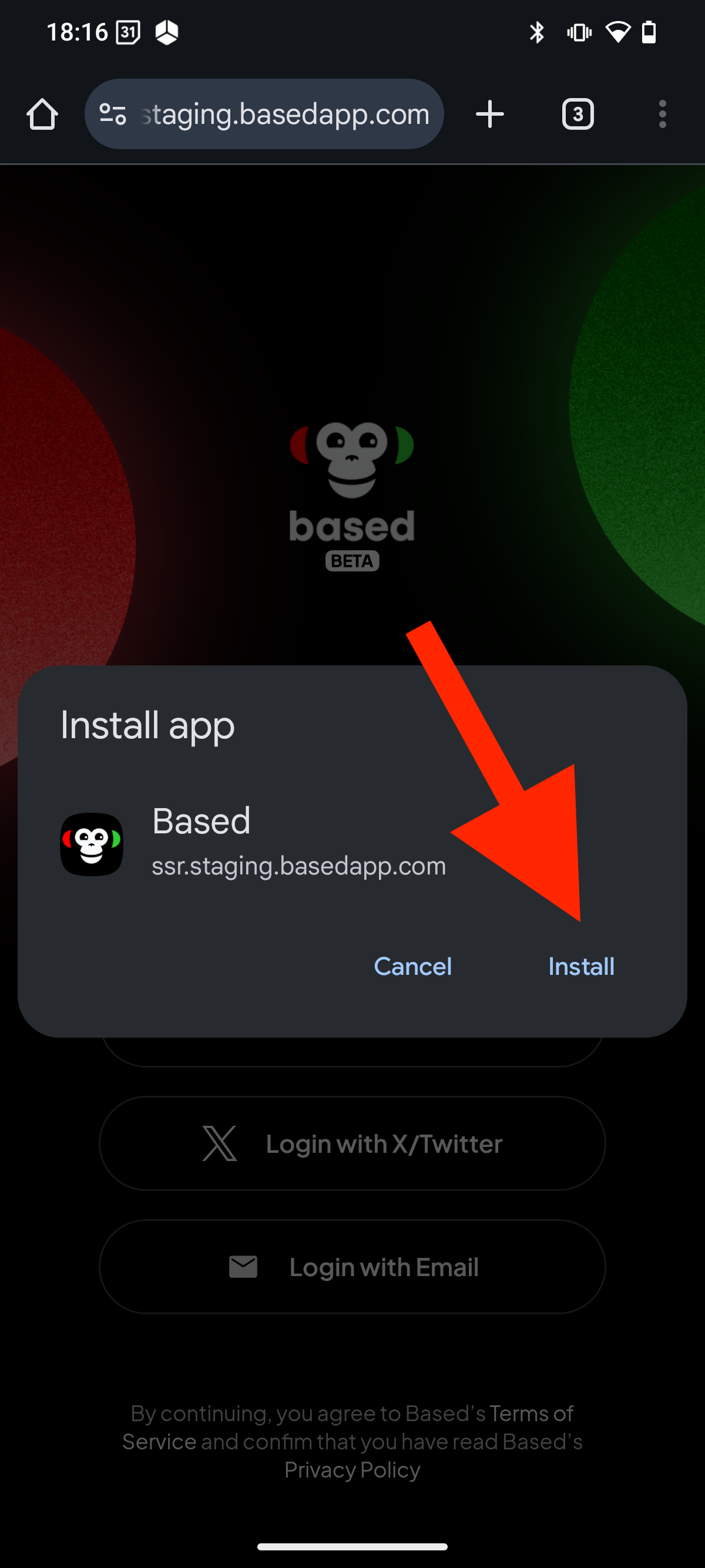 6. The app is now installed to your device and you can access it from your home screen
  ### iPhone (iOS 26+)
1. Using Safari, navigate to [app.basedapp.com](https://app.basedapp.com)
2. Then click the ellipsis (three dots) in the bottom right corner
### iPhone (iOS 26+)
1. Using Safari, navigate to [app.basedapp.com](https://app.basedapp.com)
2. Then click the ellipsis (three dots) in the bottom right corner 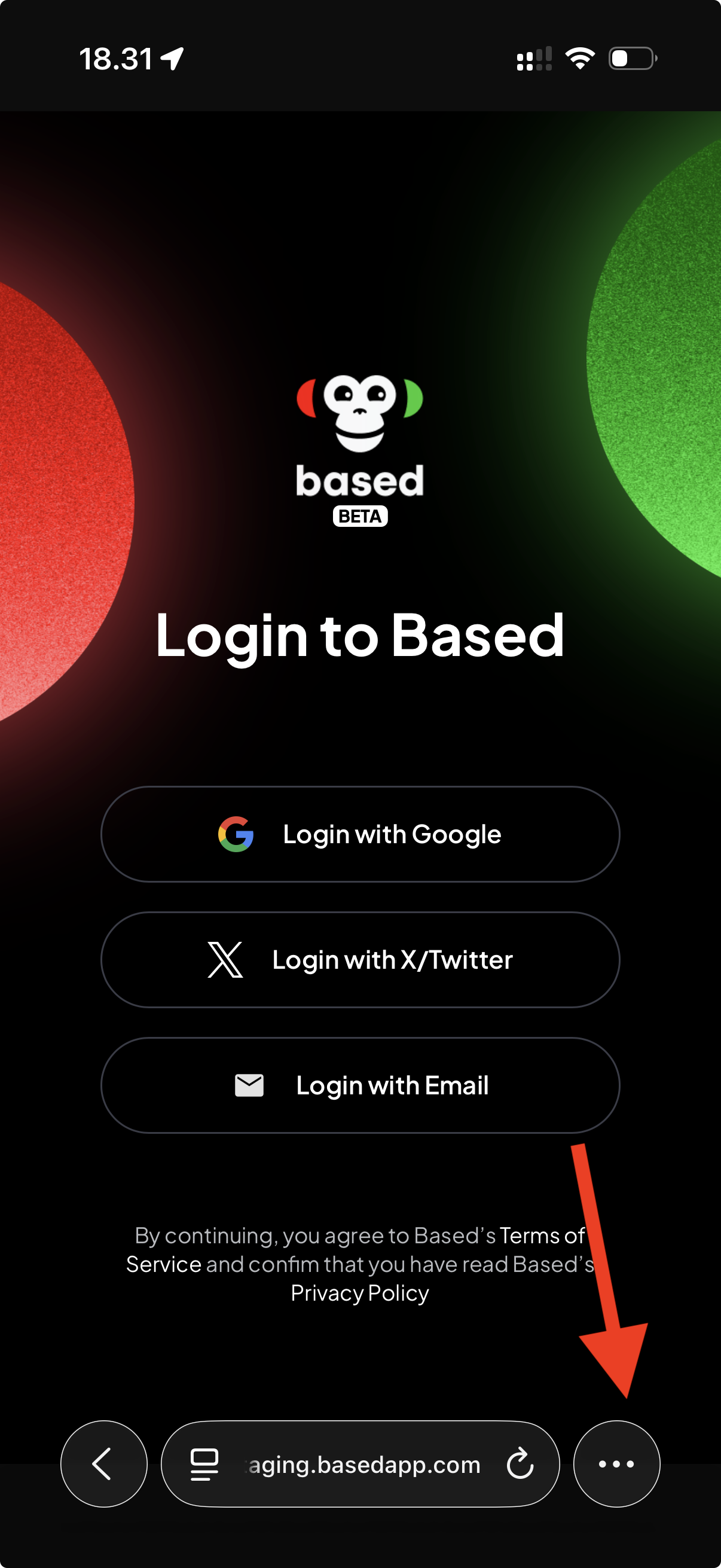 3. Select "Share"
 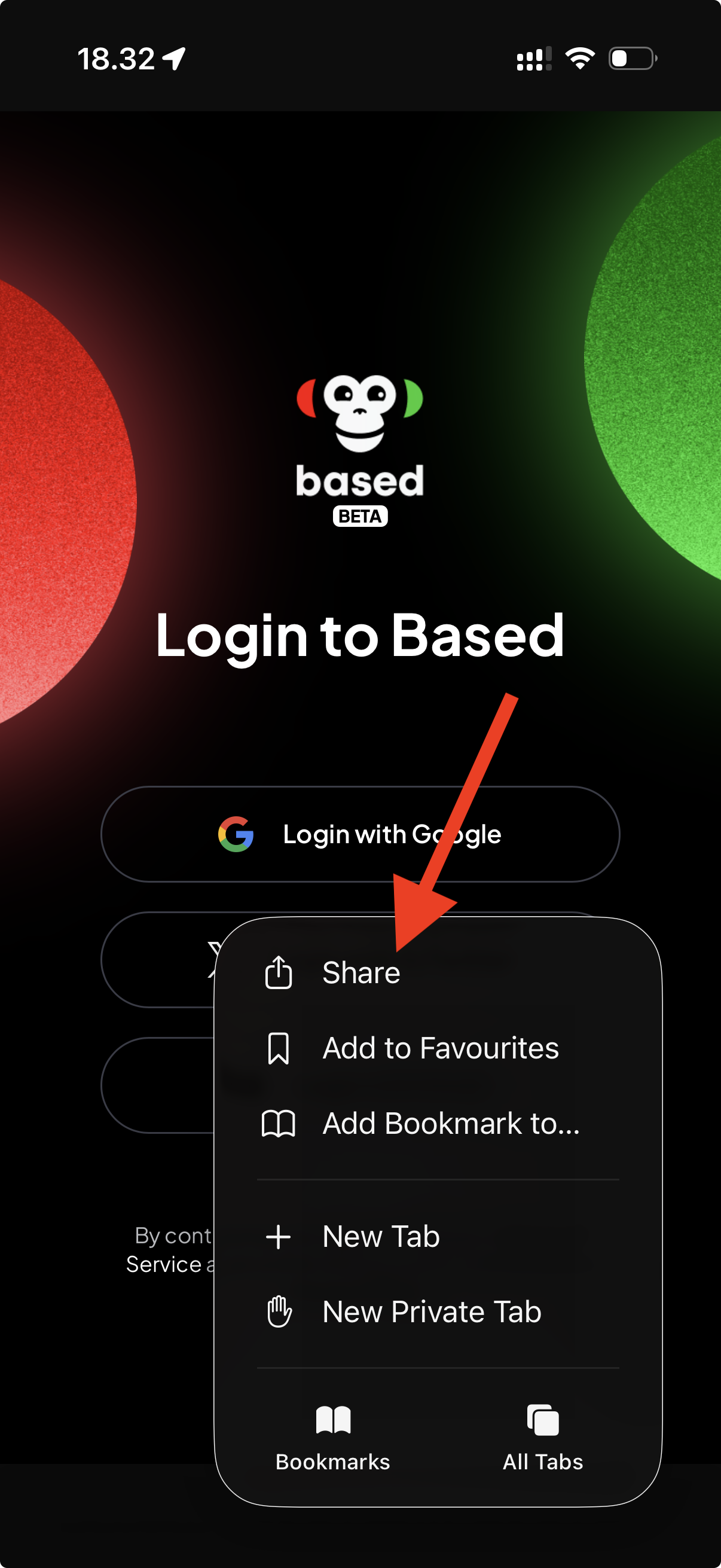 4. Scroll down until you see "Add to Home Screen" and select it
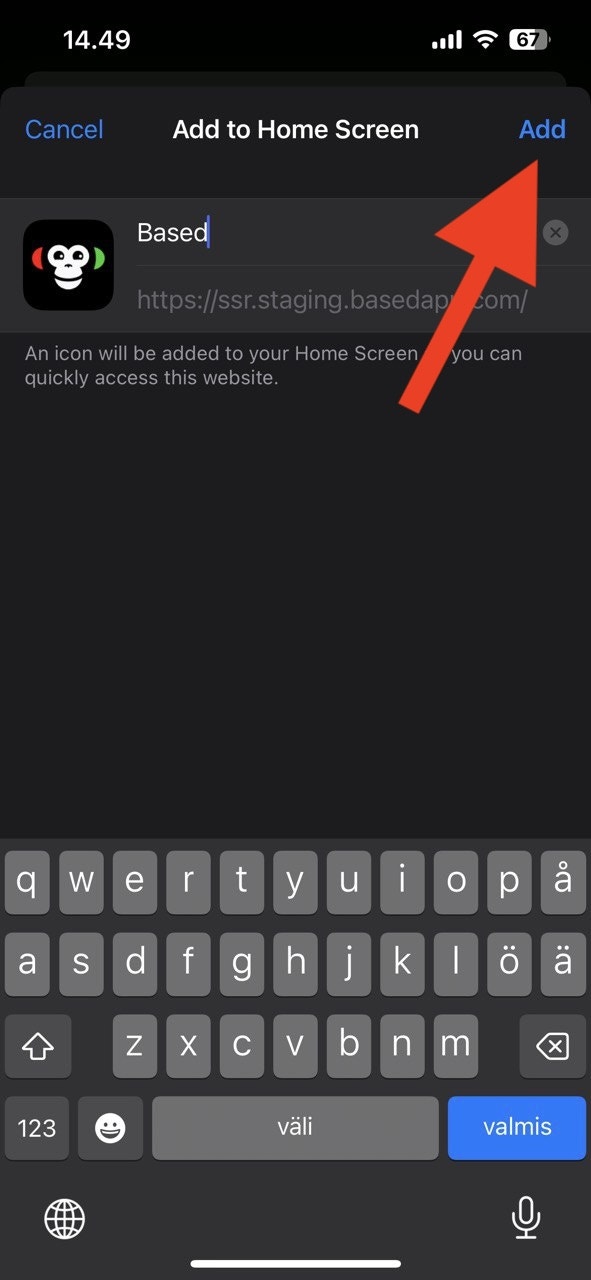
 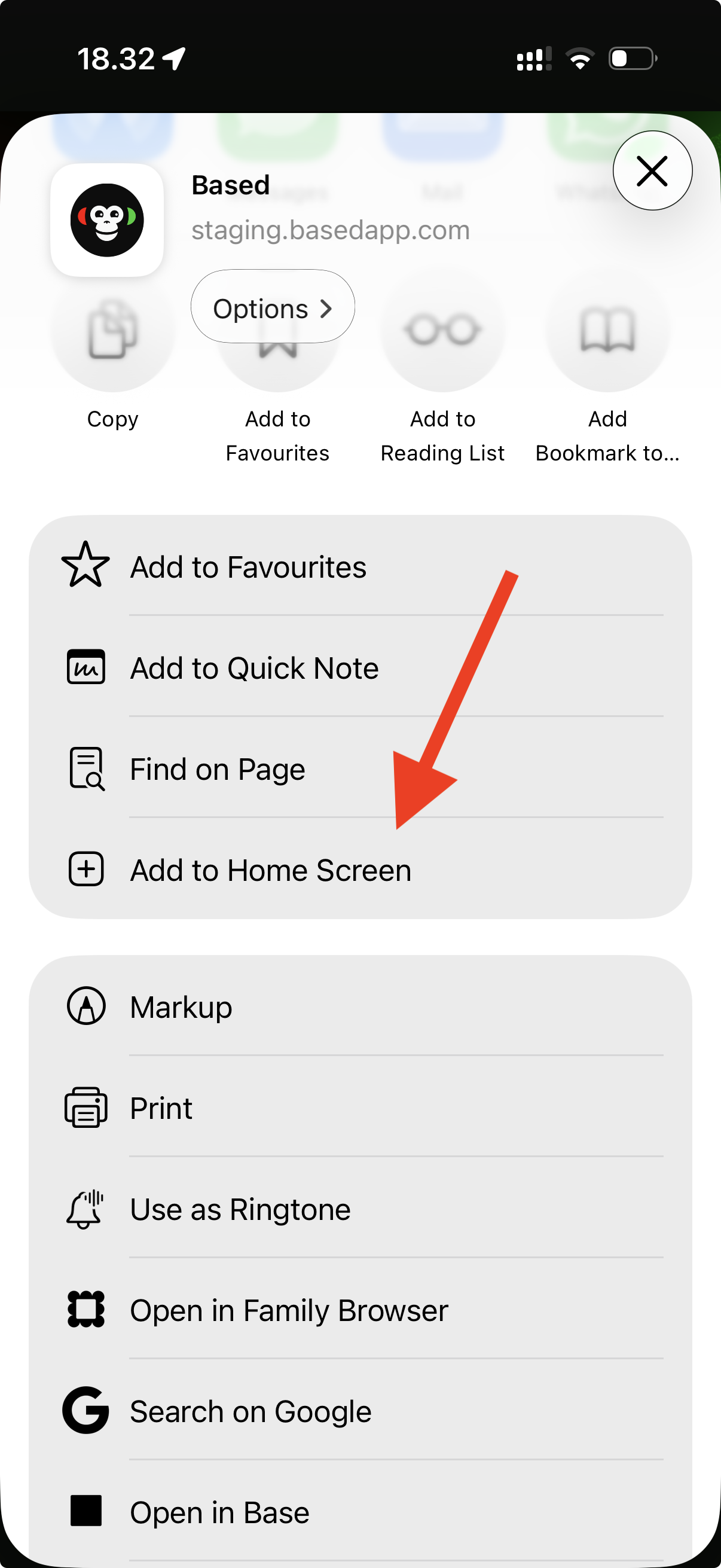 5. Click "Add"
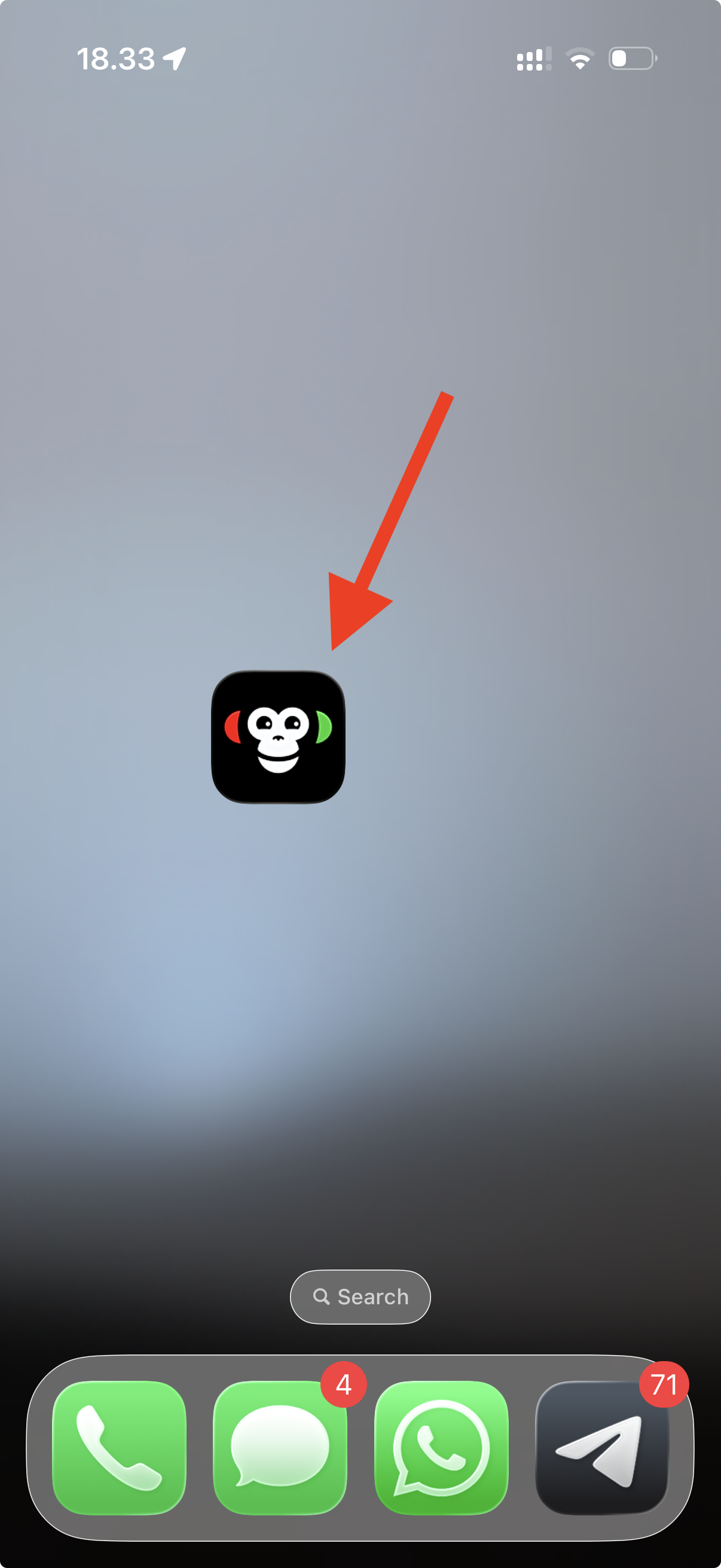
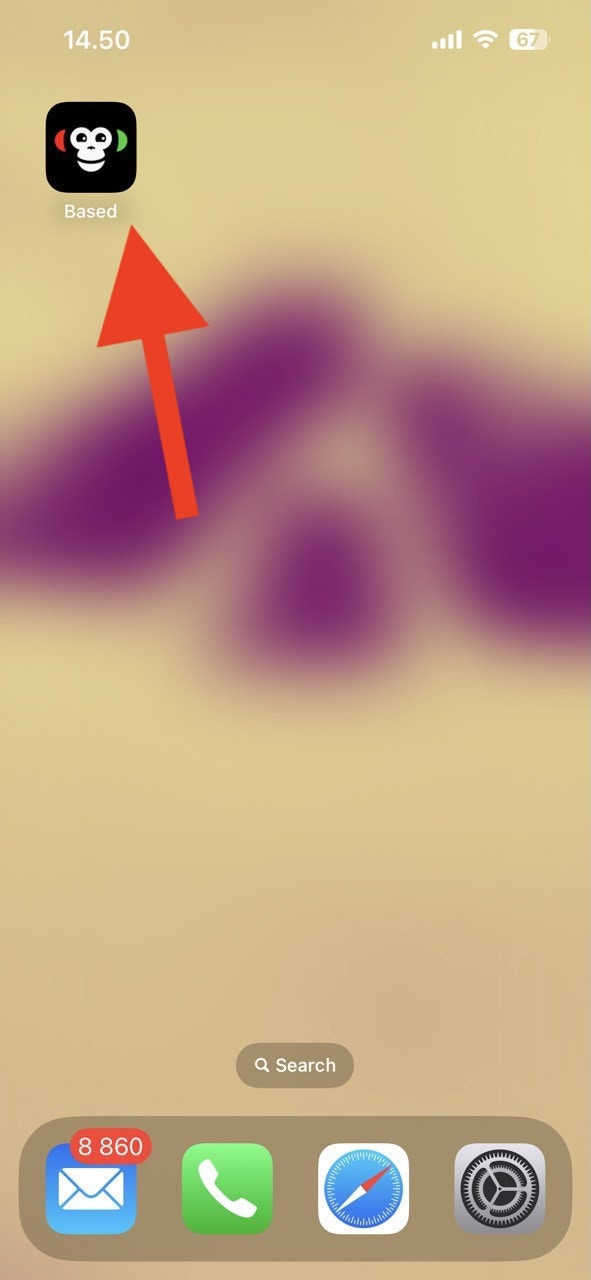
 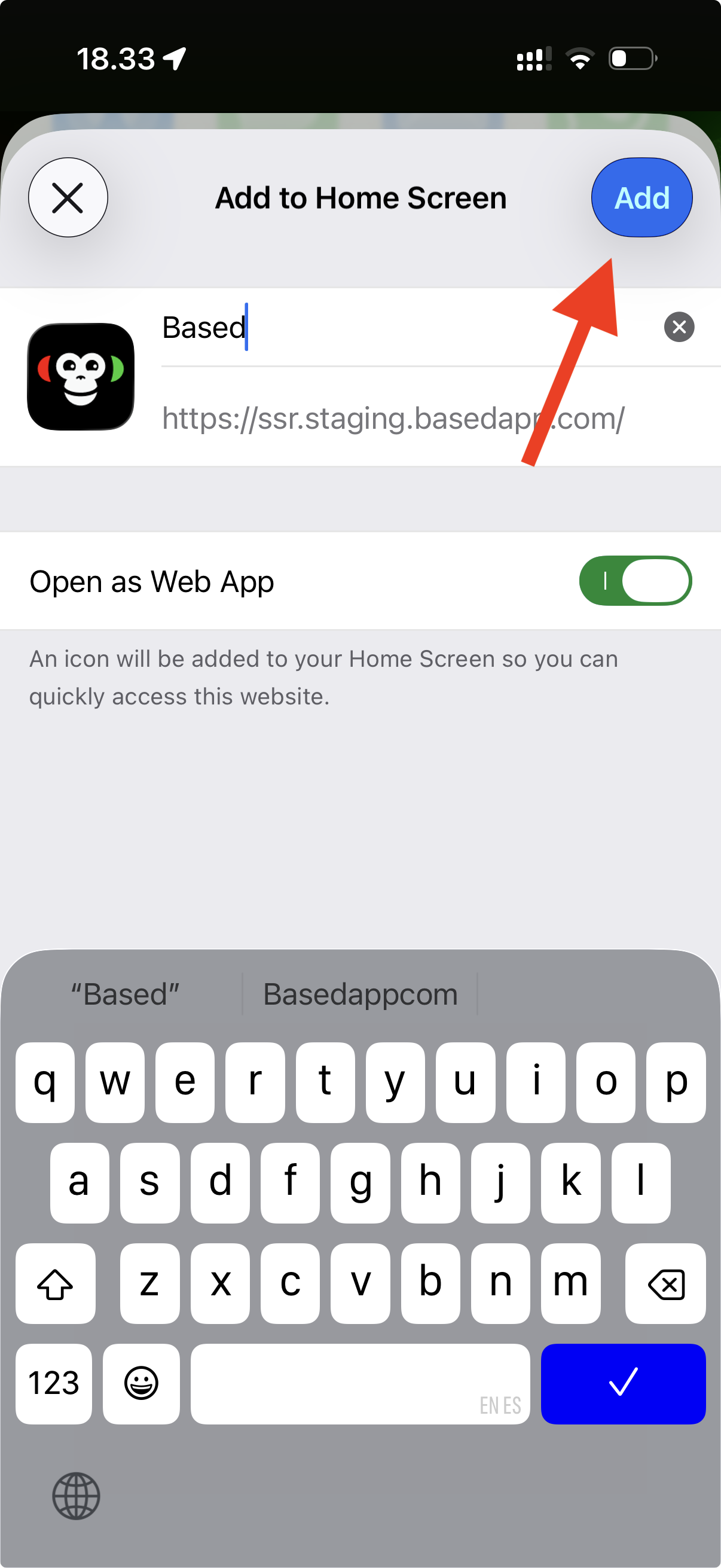 6. The app is now installed to your device and you can access it from your home screen
  ### iPhone (iOS 18 and earlier)
1. Using Safari, navigate to [app.basedapp.com](https://app.basedapp.com)
2. Then click the share icon in the middle of the bottom bar
### iPhone (iOS 18 and earlier)
1. Using Safari, navigate to [app.basedapp.com](https://app.basedapp.com)
2. Then click the share icon in the middle of the bottom bar 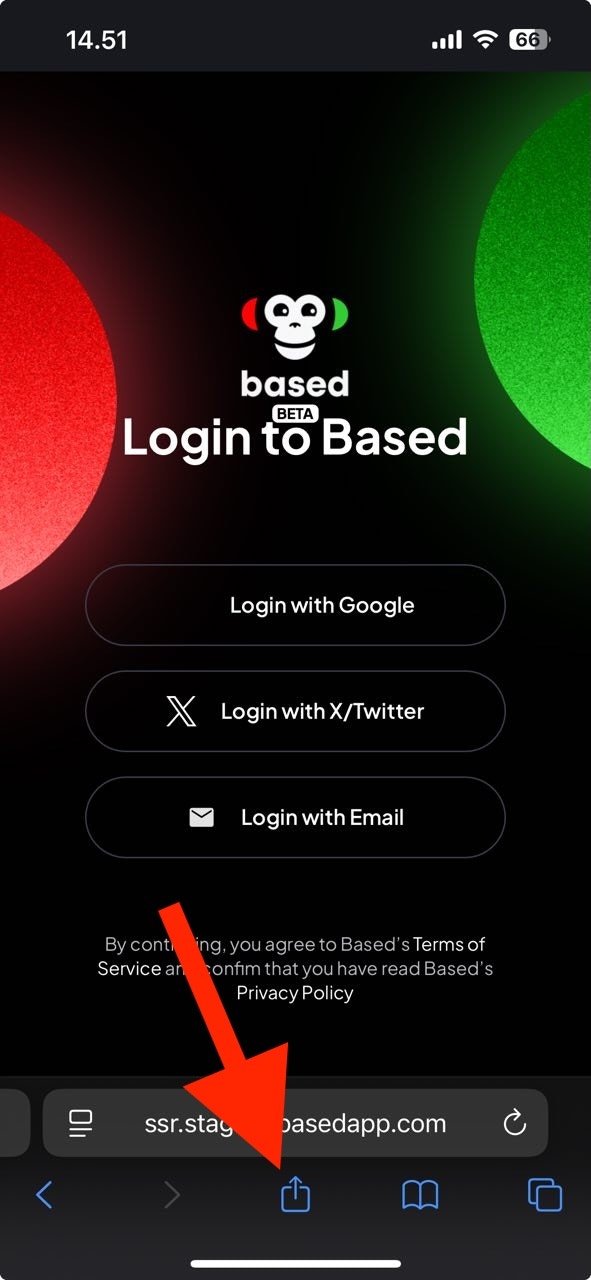 3. Scroll down until you see "Add to Home Screen" and select it
 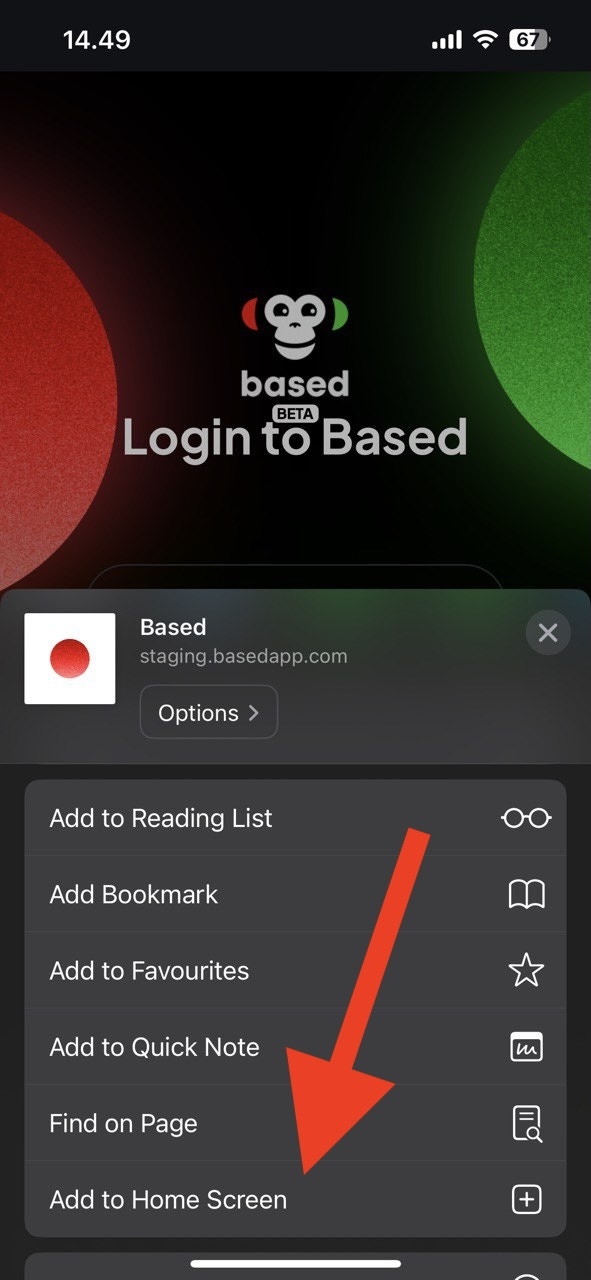 4. Click "Add"
  5. The app is now installed to your device and you can access it from your home screen
  ## Depositing
**Deposits are limited to \$1000 during the beta!** Depositing any larger amount may lead to disqualification for earning bananas. We will inform about changes to this threshold within the deposit section and on our social media.
To trade, you need to deposit USDC on the Base L2 into your Based app wallet.
1. Navigate to the wallet screen
2. Click the `+` icon in the bottom right corner
## Depositing
**Deposits are limited to \$1000 during the beta!** Depositing any larger amount may lead to disqualification for earning bananas. We will inform about changes to this threshold within the deposit section and on our social media.
To trade, you need to deposit USDC on the Base L2 into your Based app wallet.
1. Navigate to the wallet screen
2. Click the `+` icon in the bottom right corner 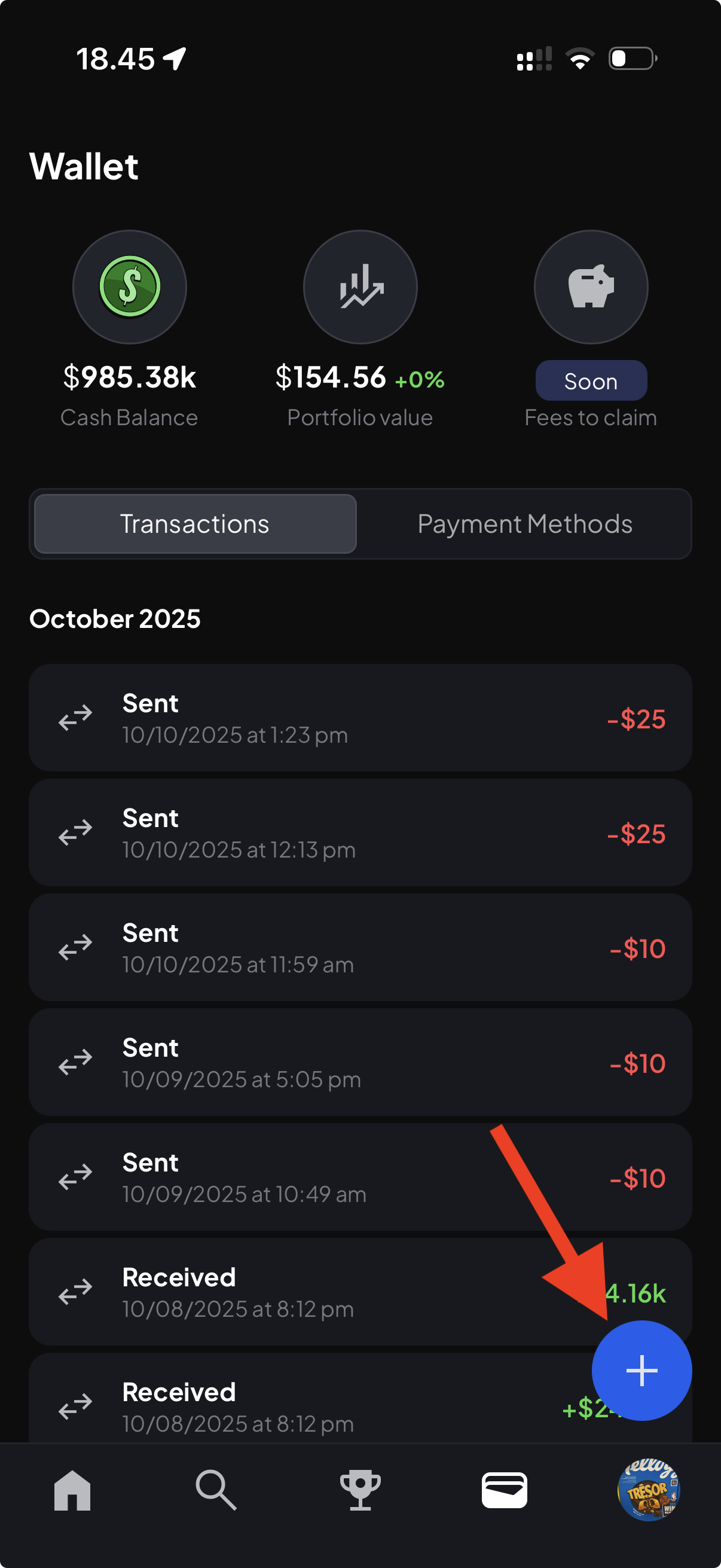 3. Choose any of the available deposit options and follow the instructions
4. You will be asked to confirm your deposit in the wallet screen once it has been received.
You can deposit to your Base USDC address from any wallet or exchange. Make sure to deposit only USDC on the Base L2. Depositing any other funds may lead to irrevocable losses.
## Withdrawing
To ensure the security of your funds while withdrawing, we do NOT recommend withdrawing directly to an exchange.
To withdraw your funds as USDC on the Base L2:
1. Navigate to the wallet screen
2. Click the `+` icon in the bottom right corner
3. Choose any of the available withdrawal options and follow the instructions
You can withdraw from your Based wallet to any wallet that supports USDC on the Base L2. We do **NOT** recommend withdrawing directly to an exchange in case they require wallet verification (travel rule regulation).
3. Choose any of the available deposit options and follow the instructions
4. You will be asked to confirm your deposit in the wallet screen once it has been received.
You can deposit to your Base USDC address from any wallet or exchange. Make sure to deposit only USDC on the Base L2. Depositing any other funds may lead to irrevocable losses.
## Withdrawing
To ensure the security of your funds while withdrawing, we do NOT recommend withdrawing directly to an exchange.
To withdraw your funds as USDC on the Base L2:
1. Navigate to the wallet screen
2. Click the `+` icon in the bottom right corner
3. Choose any of the available withdrawal options and follow the instructions
You can withdraw from your Based wallet to any wallet that supports USDC on the Base L2. We do **NOT** recommend withdrawing directly to an exchange in case they require wallet verification (travel rule regulation).